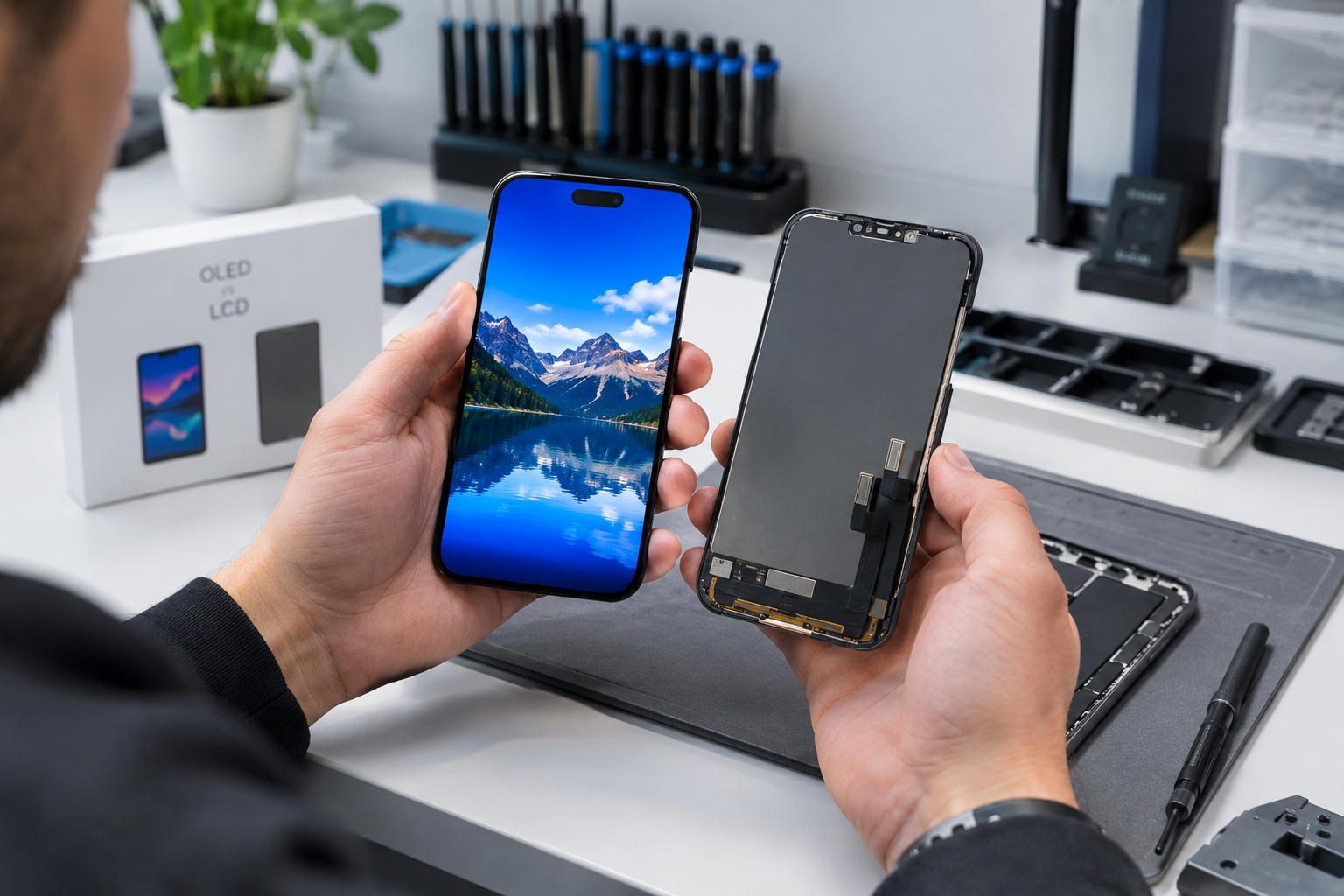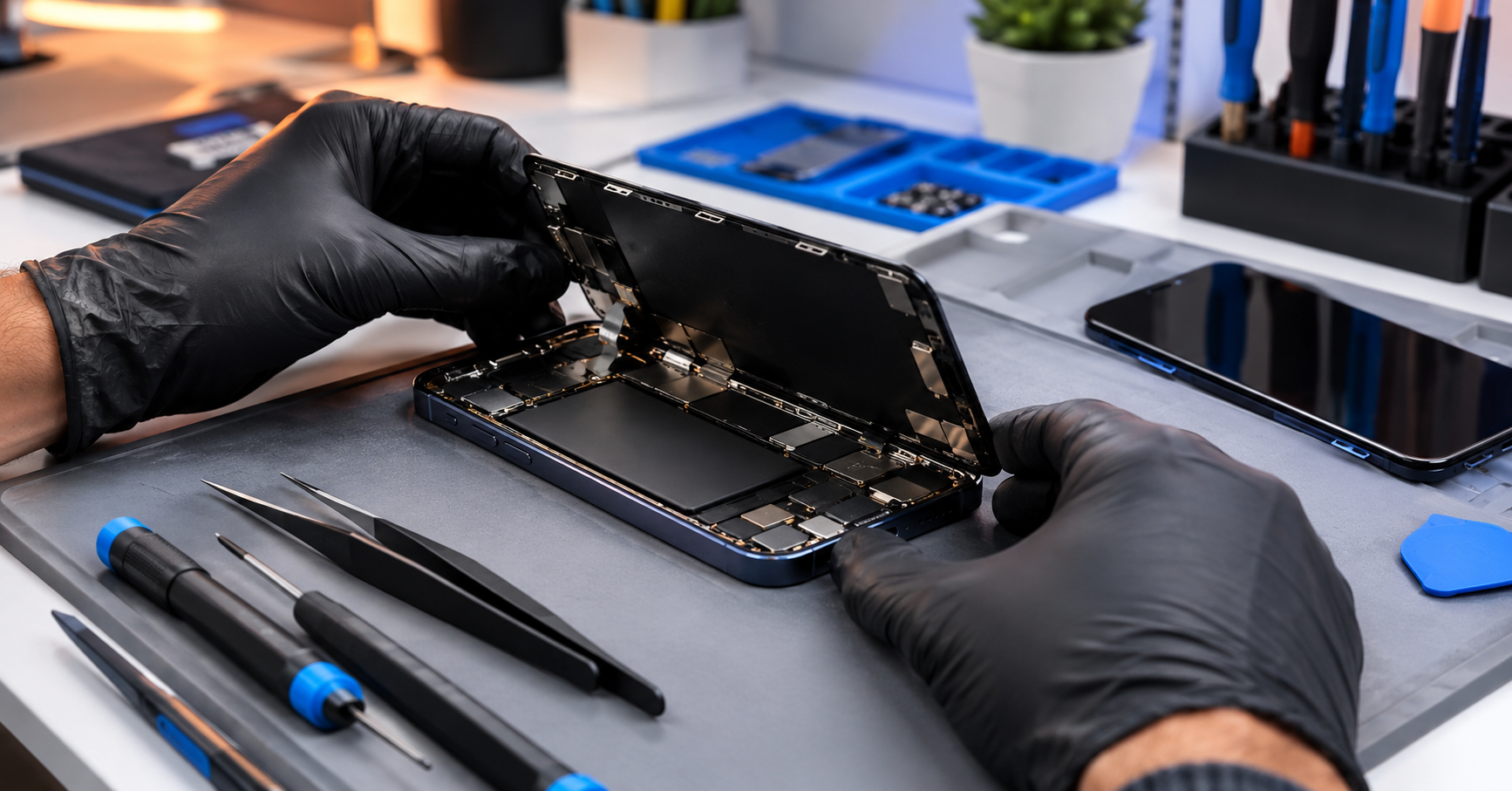
You replace the screen of an iPhone 13, everything works, the customer leaves happy. Two days later they are back: “My phone says the screen isn’t original. Did you fit a fake part?” The repair was fine. What was missing was one sentence at the counter before opening the phone.
For several generations, the iPhone has checked some of its parts and reported when it cannot confirm they were installed through Apple’s process. This guide explains what the iPhone checks, what really changes for the customer, and how to turn it into a sign of professionalism rather than a dispute.
What the iPhone checks, and on which models
The iPhone keeps a parts and service history. For each monitored part, it shows whether the part is genuine and verified, or that it cannot verify it: the part is then listed as “Unknown”.
| Part | Models | What the customer sees | What may change |
|---|---|---|---|
| Battery | iPhone XR, XS and later | A message saying it is unable to verify that the battery is a genuine Apple battery | Battery health information might not be accurate. |
| Display | iPhone 11 and later (except iPhone SE 2nd and 3rd generation) | The display listed as “Unknown” in the history | Depending on the part: True Tone, ambient light sensing, colour, touch. |
| Rear camera | iPhone 12 and later | The camera listed as “Unknown” in the history | The camera still works; picture quality depends on the part. |
The history is in Settings > General > About, under “Parts and Service History”; it only appears once the iPhone has been repaired. Apple states that these messages don’t affect the ability to use the iPhone, but an “Unknown” part may lower its trade-in value. A future buyer will see it too.

A genuine Apple part is not always “verified”
This is what customers understand least. “Unknown” does not mean “counterfeit”: it means the iPhone could not verify the part after the repair.
- A compatible (non-Apple) part is listed as Unknown.
- A genuine Apple part taken from another iPhone is listed as “Used” on iPhone 15 and later with iOS 18; on older models it may be listed as Unknown, because it was not verified.
- A new genuine Apple part shows “Finish Repair” until the repair is completed with Apple’s Repair Assistant.
The message is information, not a fault. A phone listing an “Unknown” part works. The quality of the part and of the fitting is what makes a good repair.
What to preserve during the repair
- Face ID. After a screen replacement, what breaks Face ID is most often the earpiece and sensor flex attached to the original screen: transfer it carefully, without bending or overheating it.
- True Tone. A programmer can copy the original screen’s data to the new one, as long as the old screen can still be read. Do it before throwing the broken screen away.
- Battery health. With an unverified battery, the percentage shown may be wrong: don’t rely on it to judge the battery, and tell the customer.
- Touch, brightness and battery life depend on the part itself: an incell screen uses more power than an OLED one, for example. That is a question of quality, not of the message.
How to tell the customer
The same message, discovered alone at home or announced at the counter, gets a completely different reaction. Announced beforehand, it shows you know your trade.
- Before opening the phone, explain it in one plain sentence: “As with any repair outside Apple, your iPhone will say the part was not verified by Apple. The phone works normally; it is information, not a fault.”
- Write it on the repair ticket, with the type of part chosen (original pull, compatible OLED, incell…) and the agreed price. The customer knows what they accepted, and so do you.
- Take photos at intake: the state of the screen, the frame, and the parts history if it already lists an unknown part. A phone already repaired elsewhere is not your responsibility, provided you can show it.
- Mention resale and warranty: the history stays visible to a buyer, and a repair outside Apple’s network is not covered by Apple’s warranty.
- At pick-up, show them where the history is and remind them it was expected. Two minutes that avoid an unhappy return.
The shop’s checklist
- Check the parts history before any work, and photograph it.
- Announce the message and note it on the ticket.
- Carefully transfer the sensor flex (Face ID) and the True Tone data.
- Test before closing: Face ID, True Tone, touch across the whole surface, auto-brightness, camera, earpiece.
- Hand the phone back explaining the message, ticket in hand.
Frequently asked questions
Does the “Unknown” entry go away?
No. It stays in the iPhone’s parts history.
Does a genuine Apple part avoid the message?
Not necessarily: a genuine part taken from another iPhone is listed as “Used” on recent models, or “Unknown” on older ones. It is still worth it (display, battery life, reliability), but the customer should know what they will see.
What about Android?
This system is Apple’s own. On most Android phones the screen can be replaced without any message, but an under-display fingerprint reader often has to be re-enrolled by the customer after the repair: tell them too.
Does the repair void the Apple warranty?
A repair done outside Apple’s network is not covered by Apple’s warranty or AppleCare; it is covered by your shop’s own warranty. For an iPhone still under Apple warranty, tell the customer before repairing.
Choosing the part
The message doesn’t tell a good part from a bad one: the part itself does. On Tunispare, the search shows the grade of each offer (original, OEM, copy, refurbished) and can keep only parts whose reference is verified, or those other workshops have already fitted on that model. When in doubt about a version, ask the supplier before ordering.